3D Stereo Video
 en
en
 Deutsch
 French
 Russian
 Spanish
 Portugues
 Japanese
 Korean
 Turkey
 Italy
Italy Poland
 Indonesia
 Arabic
 India
India Thailand
 Malaysia
 Filipino
 China
China Taiwan
 Vietnam
 Netherlands
 Sweden
 Norway
 Denmark
The NVIDIA 3D Vision Kit was originally created to show 3D content on a computer using shutter glasses. If your video card and display are fast enough, the image quality will be excellent.
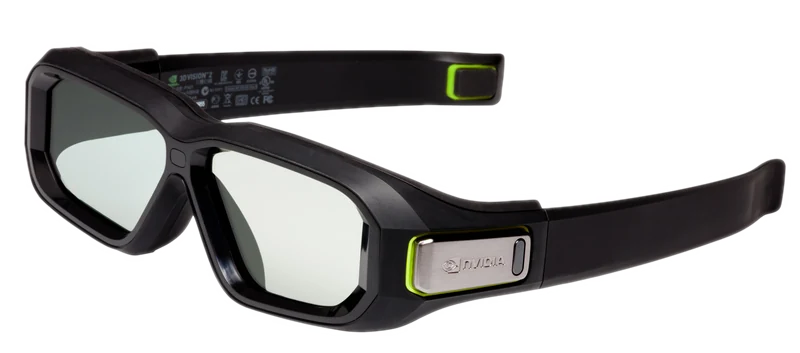
We integrated the legendary NVIDIA 3D Vision kit into our S3D Player in order to give this hardware a second life. Unfortunately, NVIDIA released a very poor version of their software, and using the kit often led to disappointment. Because of numerous bugs and problems in the code, in many cases the glasses could not even be started.
Try our new 3D controller driver. A robust, professional implementation of a high-speed software. It is simple to connect and convenient to use. You will barely notice it running - it starts reliably and works stably. The image quality may pleasantly surprise you.
Before buying any hardware, be sure to test your computer using the S3D player. Check whether your system meets the performance requirements. If the demo video plays smoothly without freezes or dropped frames, your computer is fast enough for high-quality 3D.
Required hardware:
NVIDIA 3D Emitter or kit
NVIDIA 3D Vision 2 glasses
Install the player:
S3D Player
Download 3D demo files:
3D Art, Movies, Photos, Images
Avatar "Fire and Ash" 3D trailer
Purchase a license key:
We no longer offer a free demo period. If you would like to use the NVIDIA emitter with our driver, please purchase a license.
Please note that this is a software-based driver implementation, and it will perform worse than our hardware-based S3D emitter. The results should not be directly compared with those of a professional signal processing by S3D emitter, as these are different devices with different levels of image stabilization quality. However, we continue to improve the software to achieve the best possible results.
Warning: The NVIDIA emitter cannot operate above 160 FPS. This limitation is caused by the device's legacy low-performance processor and cannot be fixed in software. As a result, a 240 FPS refresh rate is not supported.
Parameters for NVIDIA 3D Vision controller driver
| Compatible video player | S3D Player |
| Operating system | Windows 10.. Windows 11 |
| Signed driver | WinUSB Microsoft |
| Display method | Switching sides |
| Frame rate range | 110Fps.. 160Fps |
| Recommended refresh rates | 120Fps, 144Fps |
| Image formats | SBS-X, SBS-P, L-R, T/B |
| Video formats | SBS-X/P, T/B, Compressed |
| 3D glasses type | NVIDIA Glasses v1, v2 |
| Synchro modes | IR synchro only |
| NVIDIA Emitter compatibility | Only NVIDIA Glasses |
| NVIDIA Glasses compatibility | S3D Emitter |
License Key for the NVIDIA 3D controller driver

How to add a license key
Buy key in the store. When the payment system confirms the transaction, the support will send a license file to your email. Place file into the license folder inside the player directory. The player will enable NVIDIA functionality.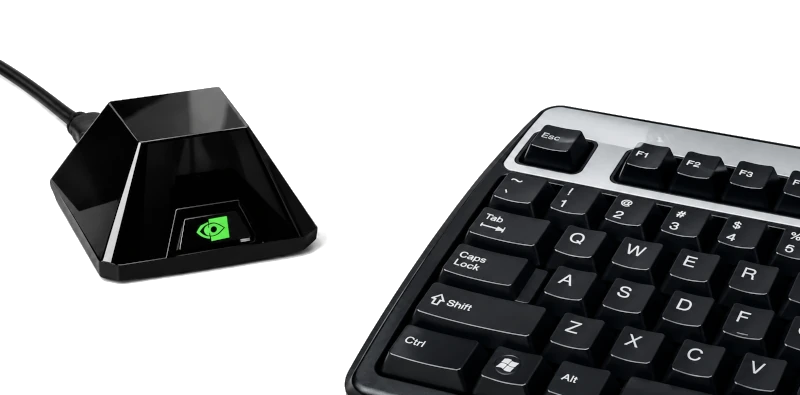
How to connect
1. Connect the NVIDIA 3D emitter to the computer2. In the player's directory, open the driver installer zadig.exe
3. In the 'Options' -> 'Device List' menu, select "NVIDIA stereo controller"
4. Install or replace the old driver to WinUSB Microsoft
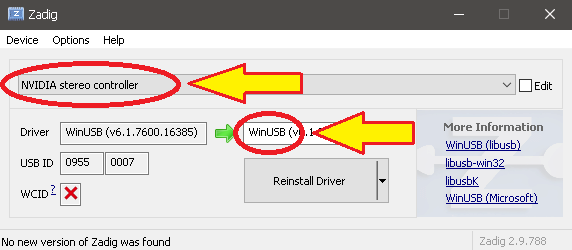
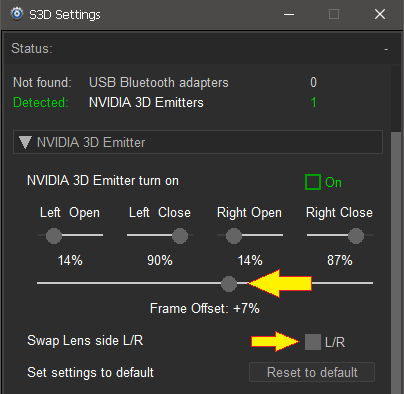
Press the player 'Glasses' button and open device control interface. Go to the NVIDIA settings tab and enable the activation checkbox.
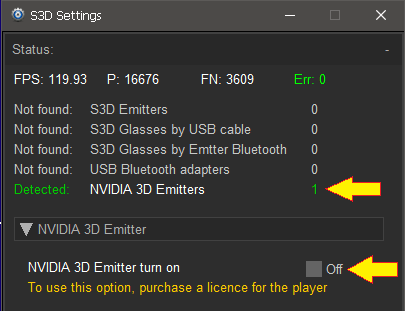
NVIDIA emitter settings
1. Set the Parallax control to 02. Use the Frame Offset knob to tune your display's delay for minimal ghosting
3. Then fine-tune the video by Parallax to your liking
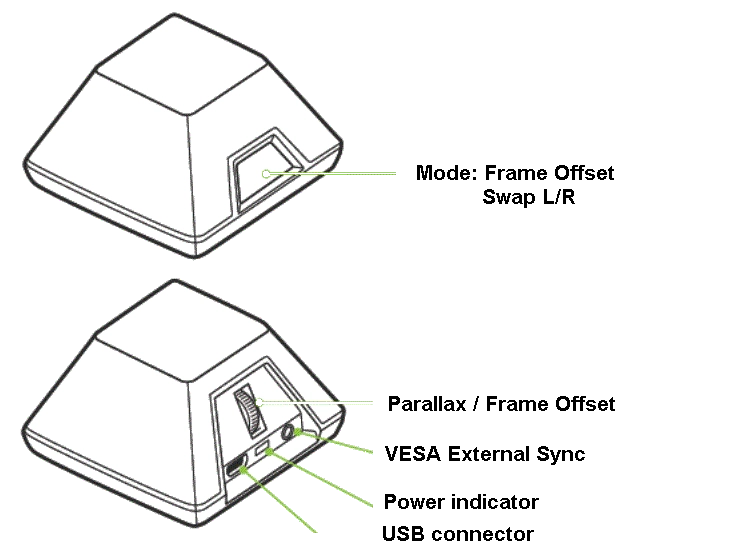
You can use the buttons and the wheel on the pyramid for quick adjustment. If you see ghosting on bright areas or double lines, reduce brightness and contrast slightly and adjust the lens open/close timing. This will reduce unwanted visual artifacts.
In the player Setup menu you will find flexible image quality controls. Using color balance settings you can perform color correction for your 3D glasses. You can adjust both video brightness/contrast and the hardware settings of your display.
When switching between normal and 3D modes, settings profiles can switch automatically. Enable the auto mode for this behavior. For a complete explanation, please read the player description page.
Enjoy high-quality 3D show..
Homepage
Terms & Conditions
About Us
Privacy Policy
Business Info
Contacts
Payment
Shipping
Send Msg
 S3D
S3DSingapore 2026